Powered by Blogger.
RSS
Showing posts with label Website Design. Show all posts

How To Download A Text Editor - Notepad ++


Notepad++ is a great text editor for windows and it is recommended for beginner, intermediate and advanced programmers. It is a lightweight and robust editor for a variety of programming and scripting languages. (PHP, HTML, Java, Javascript, ASP, C, C++, COBOL, LISP, Pascal, Perl, Python e.t.c)


Features
  • Tabbed document interface
  • Drag-and-drop
  • Auto-completion
  • Bookmarks
  • Syntax highlighting and syntax folding
  • File status auto detection
  • It's free!
How To Download
  1. Open your browser and go to http://google.com
  2. Type notepad++ in the search box and press enter, click on the first option that comes up 
  3. On the notepad's website click the download link
  4. Your website may change depending on when you are reading this post but click on download the current version
  5. Click on the installer and then save the file to your computer
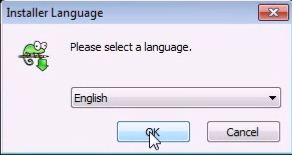
  6. After the download is completed open the installer and select English as your language
  7. Go through the installer and make sure you uncheck Run Notepad++ before you click on the finish button


  8. Create a desktop shortcut by clicking the windows key and go to All Programs
  9. Click on the folder called Notepad++
  10. Right click on the program Notepad++ and press send to Desktop
  11. Welldone! You've downloaded Notepad++, installed it and created a shortcut on your Desktop

  • Digg
  • Del.icio.us
  • StumbleUpon
  • Reddit
  • RSS

HTML Tutorial Index

Have you always wanted to be a web developer/designer? Here is a tutorial that teaches you how to create your own website, follow it step by step and be guaranteed that it'll make you a good web designer that you desire to be.


HTML is very wide so I suggest you take your time and start from the basics making sure you understand each lesson even if you spend a whole week on it, trust me its worth it.

This menu will be updated as new lessons are being published, so check in regularly and  don't forget to bookmark, subscribe to our newsletters or follow us on facebook or google+

==> HTML Tutorial

==> How To Create A Basic HTML Page Using Notepad

==> Add More To Your Basic HTML Page

==> Add More To Your Basic HTML Page #2

==> HTML Attributes

  • Digg
  • Del.icio.us
  • StumbleUpon
  • Reddit
  • RSS

HTML Tutorial


INTRODUCTION
With HTML you can create your own Web site. And this tutorial will teach you everything about HTML. HTML is easy to learn - You will enjoy it.

HTML is very wide so I suggest you take your time and start from the basics making sure you understand each lesson even if you spend a whole week on it, trust me its worth it.


ABOUT HTML
  • HTML means Hyper Text Markup Language. HTML is used to create web pages.
  • HTML is a Language (as it has code-words and syntax like any other language) that describes web pages.
  • HTML Tags are used through out the document to format different parts. For example, you use HTML tags to specify headings, paragraphs, lists, tables, images and much more.
  • HTML documents are also called web pages.
  • HTML is a subset of Standard Generalized Markup Language (SGML) and is specified by the World Wide Web Consortium (W3C).

What do I need to create HTML?

You don't need any special equipment or software to create HTML. In fact, you probably already have everything you need. Here is what you need:
  • Computer
  • Text or HTML editor . Most computers already have a text editor and you can easily create HTML files using a text editor.
Having said that, there are definite benefits to be gained in downloading an HTML editor.

If you want the best HTML editor, and you don't mind paying money for it, you can't go past Adobe Dreamweaver . Dreamweaver is probably the best HTML editor available, and you can download a trial version for starters.

If you don't have the cash to purchase an editor, you can always download a free one. Examples include SeaMonkey, Coffee Cup (Windows) and TextPad (Windows). If you don't have an HTML editor, and you don't want to download one just now, a text editor is fine. Most computers already have a text editor. Examples of text editors include Notepad (for Windows), Pico (for Linux), or Simpletext/Text Edit/ Text Wrangler (Mac).
  • Web Browser . For example, Internet Explorer or Firefox.

Do I need to be online?

No, you do not need to be online to create web pages. You can create web pages on your local machine. You only need to go online when you want to publish your web page to the web.
The next lesson will show you how to create a basic HTML page in less than 5 minutes.

HTML Versions 

  • HTML 
  • HTML+
  • HTML 2.0
  • HTML 3.2
  • HTML 4.01
  • XHTML 1.0
  • HTML 5
  • XHTML 5

<<HTML TUTORIAL INDEX


    • Digg
    • Del.icio.us
    • StumbleUpon
    • Reddit
    • RSS

    Add More To Your Basic HTML Page

     HTML Tags are used to describe the contents of a web page so that you can view them in browsers. And in some mins, we will spice up our Basic HTML Page with some tags but before then, what is HTML Tags all about?


    1. HTML tags are keywords (tag names) surrounded by angle brackets like <html>
    2.  HTML tags normally come in pairs like <b> and </b>
    3.  The first tag in a pair is the start tag, the second tag is the end tag
    4.  The end tag is written like the start tag, with a forward slash before the tag name 
    5.  Start and end tags are also called opening tags and closing tags
    Requirements
    1.  Text Editor (Notepad for those using Windows or TextEdit for Mac users).
    2.  Web Browser (Internet Explorer, Firefox, Google Chrome, Netscape etc).

    Step 1
     Open the html file you created based on the Basic HTML Page post  with a text editor (Notepad or TextEdit ).

    Step 2
    Add the code (or copy & paste) between the <body></body> tags.

    <html>

    <head>
    <title>
    A Simple Web Page</title>
    </head>

    <body>
    <center>
    <h1>This is a heading</h1>
    <p>This is a paragraph</p>
    <b>This text is in bold</b>
    <i>This text is in italics</i> 
     
    <p>
    It's nice to be able to add <b>bold text</b> and <i>italics.</i></p>

    </center>
     
    </body>

    </html>

    Step 3
      Open the file in any browser by simply
    1. Navigating to your file then double clicking on it
    ...OR...
    1. Open up your computer's web browser (for example, Internet Explorer, Firefox, Netscape etc).
    2. Select File > Open, then click "Browse". A dialogue box will appear prompting you to navigate to the file. Navigate to the file, then select "Open".
     Summary
    • <title></title> : Sets the title of a web page.
    • <h1></h1> : Beginning and end of a heading.  
    • <p></p> : Beginning and end of a paragraph (puts a space between paragraphs).
    •  <b></b> : Bold text.
    •  <i></i> : Italics.
    •  <center></center> : Centre everything between these tags (note the American spelling).
      Note that not all browsers/user agents support all HTML tags and their attributes, so you should try to test your pages in as many browsers as you can.

    <<How To Create A Basic HTML Page

    • Digg
    • Del.icio.us
    • StumbleUpon
    • Reddit
    • RSS

    How To Create A Basic HTML Page Using Notepad


    With HTML you can create your own Web site, wow! Great isn't it? But it all starts from somewhere that's why today, am gonna show you how to create a basic HTML page using Notepad. HTML is easy to learn - You will enjoy it.


    Requirements
    1. Text Editor (Notepad for those using Windows or TextEdit for Mac users).
    2. Web Browser (Internet Explorer, Firefox, Google Chrome, Netscape etc).

    Step 1
    Open up your computer's normal plain text editor (this will probably be Notepad if you're using Windows or TextEdit if you're using a Mac). 

    Step 2 
    Type the following code (or copy & paste):

    <!DOCTYPE>

    <html>

    <head>

    </head>

    <body>

    </body>

    </html>
     Step 3
     Save the file with .html extension.

    Step 4
    Open the file in any browser by simply
    1. Navigating to your file then double clicking on it
    ...OR...
    1. Open up your computer's web browser (for example, Internet Explorer, Firefox, Netscape etc).
    2. Select File > Open, then click "Browse". A dialogue box will appear prompting you to navigate to the file. Navigate to the file, then select "Open".


    That's all! Congratulations you've created a basic HTML page. Please use the comment box below for any questions.

    <<HTML Tutorial

    • Digg
    • Del.icio.us
    • StumbleUpon
    • Reddit
    • RSS