Powered by Blogger.
RSS
Showing posts with label HTML Basics. Show all posts

How To Download A Text Editor - Notepad ++


Notepad++ is a great text editor for windows and it is recommended for beginner, intermediate and advanced programmers. It is a lightweight and robust editor for a variety of programming and scripting languages. (PHP, HTML, Java, Javascript, ASP, C, C++, COBOL, LISP, Pascal, Perl, Python e.t.c)


Features
  • Tabbed document interface
  • Drag-and-drop
  • Auto-completion
  • Bookmarks
  • Syntax highlighting and syntax folding
  • File status auto detection
  • It's free!
How To Download
  1. Open your browser and go to http://google.com
  2. Type notepad++ in the search box and press enter, click on the first option that comes up 
  3. On the notepad's website click the download link
  4. Your website may change depending on when you are reading this post but click on download the current version
  5. Click on the installer and then save the file to your computer
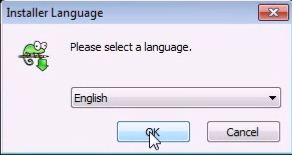
  6. After the download is completed open the installer and select English as your language
  7. Go through the installer and make sure you uncheck Run Notepad++ before you click on the finish button


  8. Create a desktop shortcut by clicking the windows key and go to All Programs
  9. Click on the folder called Notepad++
  10. Right click on the program Notepad++ and press send to Desktop
  11. Welldone! You've downloaded Notepad++, installed it and created a shortcut on your Desktop

  • Digg
  • Del.icio.us
  • StumbleUpon
  • Reddit
  • RSS

HTML Attributes

HTML tags can contain one or more attributes. Attributes are added to a tag to provide the browser with more information about how the tag should appear or behave. Attributes consist of a name and a value separated by an equals (=) sign.


  1. HTML elements can have attributes
  2. Attributes provide additional information about an element 
  3. Attributes are always specified in the start tag
  4. Attributes come in name/value pairs like: name="value"
 Try It Yourself

<p style="background-color:orange;">Do you like my background color?</p>

<a href="http://www.jesmansblog.net">This is a link</a>

  • This particular attribute statement, style="background-color:orange", tells the browser to style the <p> element with a background color of orange.
  • HTML links are defined with the <a> tag. The link address is specified in the href attribute
 Note
  1.  Attribute values should always be enclosed in quotes. 
  2.  Double style quotes are the most common, but single style quotes are also allowed.
  3.  Attribute names and attribute values are case-insensitive.
Summary
Many attributes are available to HTML elements, some are common across most tags, others can only be used on certain tags.
Below is a list of some attributes that can be used on any HTML element:

class ==> Specifies one or more classnames for an element (refers to a class in a style sheet)

id ==> Specifies a unique id for an element

style ==> Specifies an inline CSS style for an element

title ==> Specifies extra information about an element (displayed as a tool tip)

 <<Add More To Your Basic HTML Page #2
 

  • Digg
  • Del.icio.us
  • StumbleUpon
  • Reddit
  • RSS

HTML Tutorial Index

Have you always wanted to be a web developer/designer? Here is a tutorial that teaches you how to create your own website, follow it step by step and be guaranteed that it'll make you a good web designer that you desire to be.


HTML is very wide so I suggest you take your time and start from the basics making sure you understand each lesson even if you spend a whole week on it, trust me its worth it.

This menu will be updated as new lessons are being published, so check in regularly and  don't forget to bookmark, subscribe to our newsletters or follow us on facebook or google+

==> HTML Tutorial

==> How To Create A Basic HTML Page Using Notepad

==> Add More To Your Basic HTML Page

==> Add More To Your Basic HTML Page #2

==> HTML Attributes

  • Digg
  • Del.icio.us
  • StumbleUpon
  • Reddit
  • RSS

Add More To Your Basic HTML Page #2

Word processing applications give you options for formatting and I know you use them all the time. Well the good news is that HTML also has a way of formatting which is achieved through the use of HTML tags and the bad news is that inappropriate use of these tags results in a bad web page. This lesson deals with some of the more common formatting options.

Requirements
  1.  Text Editor (Notepad for those using Windows or TextEdit for Mac users).
  2.  Web Browser (Internet Explorer, Firefox, Google Chrome, Netscape etc).
  3.  A Basic HTML Page.
 Step 1
Open the basic HTML page with a text editor (Notepad or TextEdit ).

Step 2Add the following HTML code between the <body></body> tags. And don't forget to save your work after editing the file.


Headings
There is a special tag for specifying headings in HTML. There are 6 levels of headings in HTML ranging from <h1> for the most important, to <h6> for the least important.

<h1>Heading 1</h1>
<h2>Heading 2</h2>
<h3>Heading 3</h3>
<h4>Heading 4</h4>
<h5>Heading 5</h5>
<h6>Heading 6</h6>


The <strong> Element
This is used to place a strong importance on a piece of text, use the <strong> element.

<p><strong>Attention:</strong> Please leave the door open.</p>

The <em> Element
 You can place an emphasis on text by using the <em> element.

<p>Strawberries are <em>delicious</em>!</p>

Line Breaks
You can force a line break by using the <br> element.

<p>Here is a <br />line break.</p>

Horizontal Rule
You can create a horizontal rule by using the <hr> element.

Here's a horizontal rule... <hr /> ...that was a horizontal rule :)

Unordered (un-numbered) List
To create an unordered list, use the <ul> element to define the list, and the <li> element for each list item.

<ul>
    <li>List item 1</li>
    <li>List item 2</li>
    <li>List item 3</li>
</ul>

Ordered (numbered) List
To create an ordered list, use the <ol> element to define the list, and the <li> element for each list item.
Note, that the only difference between an ordered list and an unordered list is the first letter of the list definition ("o" for ordered, "u" for unordered).

<ol>
    <li>List item 1</li>
    <li>List item 2</li>
    <li>List item 3</li>
</ol>

 Step 3
Open the file in any browser by simply
  1. Navigating to your file then double clicking on it
...OR...
  1. Open up your computer's web browser (for example, Internet Explorer, Firefox, Netscape etc).
  2. Select File > Open, then click "Browse". A dialogue box will appear prompting you to navigate to the file. Navigate to the file, then select "Open".
 Exercise
Open the source page of websites and play around with the tags inside by opening your browser, go to any website, and follow the steps below to view the source page.

  1. View > Source (Internet Explorer)
  2. Tools > Web Developer > Page Source =  Ctrl + U (Mozilla Firefox)
  3. View > Source = Ctrl + U (Opera)
<<Add More To Your Basic HTML Page
  

  • Digg
  • Del.icio.us
  • StumbleUpon
  • Reddit
  • RSS

Add More To Your Basic HTML Page

 HTML Tags are used to describe the contents of a web page so that you can view them in browsers. And in some mins, we will spice up our Basic HTML Page with some tags but before then, what is HTML Tags all about?


  1. HTML tags are keywords (tag names) surrounded by angle brackets like <html>
  2.  HTML tags normally come in pairs like <b> and </b>
  3.  The first tag in a pair is the start tag, the second tag is the end tag
  4.  The end tag is written like the start tag, with a forward slash before the tag name 
  5.  Start and end tags are also called opening tags and closing tags
Requirements
  1.  Text Editor (Notepad for those using Windows or TextEdit for Mac users).
  2.  Web Browser (Internet Explorer, Firefox, Google Chrome, Netscape etc).

Step 1
 Open the html file you created based on the Basic HTML Page post  with a text editor (Notepad or TextEdit ).

Step 2
Add the code (or copy & paste) between the <body></body> tags.

<html>

<head>
<title>
A Simple Web Page</title>
</head>

<body>
<center>
<h1>This is a heading</h1>
<p>This is a paragraph</p>
<b>This text is in bold</b>
<i>This text is in italics</i> 
 
<p>
It's nice to be able to add <b>bold text</b> and <i>italics.</i></p>

</center>
 
</body>

</html>

Step 3
  Open the file in any browser by simply
  1. Navigating to your file then double clicking on it
...OR...
  1. Open up your computer's web browser (for example, Internet Explorer, Firefox, Netscape etc).
  2. Select File > Open, then click "Browse". A dialogue box will appear prompting you to navigate to the file. Navigate to the file, then select "Open".
 Summary
  • <title></title> : Sets the title of a web page.
  • <h1></h1> : Beginning and end of a heading.  
  • <p></p> : Beginning and end of a paragraph (puts a space between paragraphs).
  •  <b></b> : Bold text.
  •  <i></i> : Italics.
  •  <center></center> : Centre everything between these tags (note the American spelling).
  Note that not all browsers/user agents support all HTML tags and their attributes, so you should try to test your pages in as many browsers as you can.

<<How To Create A Basic HTML Page

  • Digg
  • Del.icio.us
  • StumbleUpon
  • Reddit
  • RSS

How To Create A Basic HTML Page Using Notepad


With HTML you can create your own Web site, wow! Great isn't it? But it all starts from somewhere that's why today, am gonna show you how to create a basic HTML page using Notepad. HTML is easy to learn - You will enjoy it.


Requirements
  1. Text Editor (Notepad for those using Windows or TextEdit for Mac users).
  2. Web Browser (Internet Explorer, Firefox, Google Chrome, Netscape etc).

Step 1
Open up your computer's normal plain text editor (this will probably be Notepad if you're using Windows or TextEdit if you're using a Mac). 

Step 2 
Type the following code (or copy & paste):

<!DOCTYPE>

<html>

<head>

</head>

<body>

</body>

</html>
 Step 3
 Save the file with .html extension.

Step 4
Open the file in any browser by simply
  1. Navigating to your file then double clicking on it
...OR...
  1. Open up your computer's web browser (for example, Internet Explorer, Firefox, Netscape etc).
  2. Select File > Open, then click "Browse". A dialogue box will appear prompting you to navigate to the file. Navigate to the file, then select "Open".


That's all! Congratulations you've created a basic HTML page. Please use the comment box below for any questions.

<<HTML Tutorial

  • Digg
  • Del.icio.us
  • StumbleUpon
  • Reddit
  • RSS